PFP Cropper: Den Instagram-Kreiszuschnitt vor dem Posten prüfen
Laden Sie ein quadratisches Foto auf Instagram hoch, und es kommt als Kreis zurück. Das sagt einem vorher niemand, also merken es die meisten erst auf die harte Tour: Sie laden hoch, öffnen ihr Profil und sehen ein halb abgeschnittenes Gesicht oder ein Logo ohne Ecke. Zu dem Zeitpunkt ist das Foto bereits live, für jeden, der in den nächsten Minuten zufällig auf das Profil schaut.
Ein PFP Cropper korrigiert die Reihenfolge. Er zeigt Ihnen den genauen Kreis, bevor Sie sich festlegen, nicht danach.
Was mit Ihrem Foto beim Instagram-Zuschnitt wirklich passiert
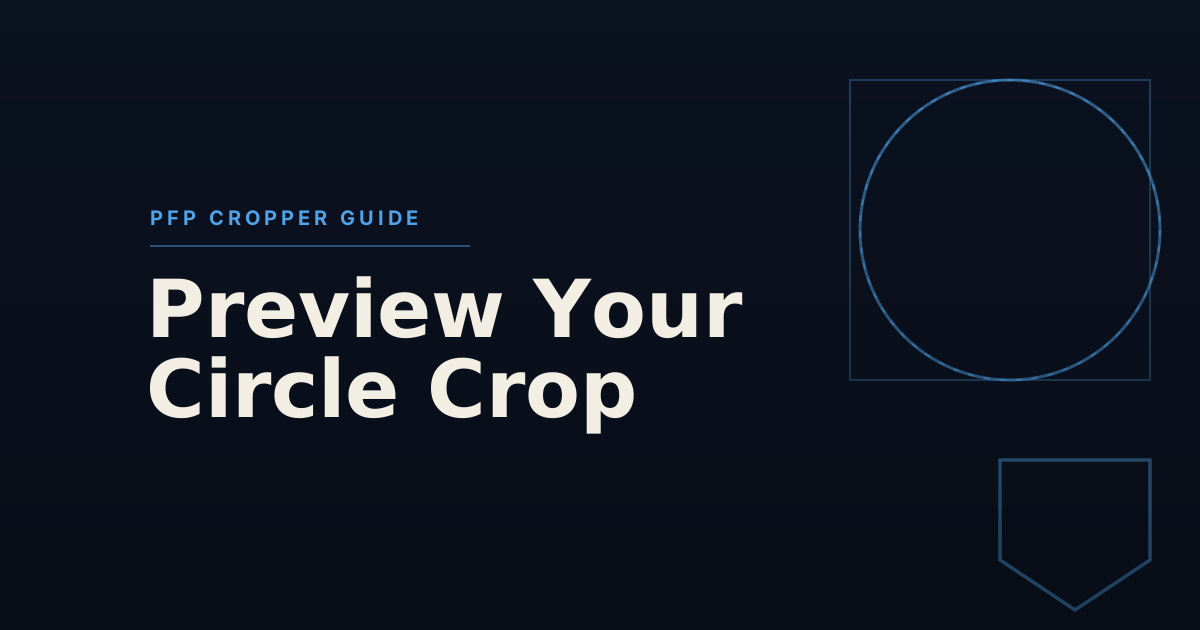
Instagram verändert Ihre hochgeladene Datei nie. Es speichert das volle Quadrat genau so, wie Sie es gesendet haben. Was sich ändert, ist die Anzeige: überall, wo Ihr Profilbild auftaucht (Profilseite, Story-Ring, Kommentare, Likes, Direktnachrichten), zeichnet Instagram nur den größten Kreis, der in dieses Quadrat passt, standardmäßig zentriert, und blendet den Rest aus.
Das heißt, die vier Ecken eines quadratischen Fotos fallen standardmäßig immer weg, bei jedem Konto. Wenn Ihr Motiv zentriert ist, spielt das kaum eine Rolle. Sitzt ein Gesicht, ein Logo oder Text nahe einer Ecke, verschwindet es in dem Moment, in dem der Kreiszuschnitt angewendet wird, auch wenn die zugrunde liegende Datei es noch enthält.
Warum Raten nicht funktioniert
Der naheliegende Umweg, hochladen und schauen, wie es aussieht, hat zwei Probleme. Erstens ist Ihr Profilbild sofort sichtbar, sobald Sie speichern, jeder, der in diesem Fenster zufällig auf Ihr Profil schaut, sieht den missratenen Zuschnitt. Zweitens erfordert das Prüfen bei jeder Anpassung ein erneutes Hochladen, was auf dem Handy bedeutet: Foto neu auswählen, in Instagrams eigenem, eingeschränktem Editor neu zuschneiden und auf die Verarbeitung warten, immer wieder, für etwas, das eigentlich eine Fünf-Sekunden-Anpassung sein sollte.
Ein PFP Cropper bündelt diese Schleife auf einem Bildschirm: ziehen, zoomen, das Ergebnis sofort sehen, bei Bedarf erneut anpassen, und erst herunterladen, wenn es passt.
Was Sie vor dem Upload wirklich prüfen sollten
Zuerst den wichtigen Teil zentrieren, dann zoomen. Instagrams Kreis ist standardmäßig auf das Quadrat zentriert. Ist Ihr Motiv bereits zentriert, müssen Sie eventuell gar nicht zoomen. Sitzt es seitlich versetzt, positionieren Sie es zuerst neu, denn Hineinzoomen bei einem außermittigen Motiv drängt meist mehr davon aus dem Kreis heraus, nicht weniger.
Lassen Sie einen kleinen Rand, füllen Sie den Kreis nicht randvoll aus. Gesichter und Logos, die genau an der Kreisgrenze sitzen, wirken beengt, selbst wenn technisch nichts abgeschnitten ist. Ein kleiner Puffer aus leerem Raum um das Motiv wirkt bewusster gestaltet.
Prüfen Sie es in Klein, nicht nur in voller Größe. Ihr Profilbild wird auf dem Handy so klein wie 110x110px angezeigt. Ein Zuschnitt, der herangezoomt gut aussieht, kann anders wirken, sobald Sie auf die Größe zurückgehen, in der Follower ihn tatsächlich sehen.
Business-Konten sollten Logokanten besonders genau prüfen. Logos mit harten geometrischen Kanten (ein eckiges Icon, ein Wortmarke mit spitzen Ecken) zeigen Beschnitt deutlicher als Fotos, weil ein rundes Fotomotiv am Rand naturgemäß Details verliert, was Betrachter kaum bewusst wahrnehmen.
GridPeeks Tool nutzen
GridPeeks Profilbild-Vorschau ist genau für diesen Workflow gebaut:
- Laden Sie eine JPG-, PNG- oder WEBP-Datei hoch.
- Ziehen Sie das Foto zum Neupositionieren und nutzen Sie den Zoom-Regler, um näher heranzugehen.
- Sehen Sie die Live-Vorschau in einem realistischen Instagram-Profil-Mockup, gleichzeitig in Profilgröße, Story-Ring-Größe und Kommentargröße.
- Laden Sie ein hochladefertiges 1024x1024px-PNG herunter, sobald der Zuschnitt stimmt.
Wenn Sie zusätzlich einen farbigen Randring oder gebogenen Text um das Foto möchten, fügt dasselbe Tool beides vor dem Export hinzu; siehe den Randring-Guide dazu, wie Sie einen bauen, der den Zuschnitt übersteht.
Alles läuft lokal im Browser über Canvas. Ihr Foto wird nie an einen Server gesendet, und es ist weder ein Konto noch eine Anmeldung nötig.
Zum Abschluss
Instagrams Kreiszuschnitt ist dauerhaft und automatisch; es gibt keine Einstellung, um ihn abzuschalten oder die Form zu ändern. Die einzige echte Lösung ist, den Zuschnitt vor dem Upload zu prüfen statt danach. Positionieren und zoomen Sie, bis das Motiv sicher innerhalb des Kreises sitzt, lassen Sie am Rand einen kleinen Puffer, und prüfen Sie das Ergebnis in klein, nicht nur in voller Größe.
Probieren Sie GridPeeks Profilbild-Vorschau an Ihrem eigenen Foto aus, bevor Sie das nächste Mal hochladen.
Häufig gestellte Fragen
Was macht ein PFP Cropper eigentlich?
Er zeigt Ihnen vor dem Upload den Kreis, auf den Instagram Ihr quadratisches Bild zuschneiden wird, damit Sie so lange verschieben und zoomen können, bis der wichtige Bildteil innerhalb dieses Kreises liegt, statt an den Ecken abgeschnitten zu werden.
Warum schneidet Instagram mein Profilbild auf einen Kreis zu?
Instagram speichert jedes Profilbild als quadratische Datei, zeigt es aber überall als Kreis an: auf Ihrer Profilseite, im Story-Ring, bei Kommentaren, Likes und Direktnachrichten. Das Quadrat selbst bleibt unangetastet, nur die Anzeige ist rund, und alles außerhalb dieses Kreises wird nie gezeigt.
Welche Größe sollte ich für das schärfste Ergebnis hochladen?
Instagram akzeptiert bereits ab 320x320px, aber 1080x1080px oder höher wirkt auf modernen Bildschirmen deutlich schärfer. Ein PFP Cropper, der in 1024x1024px exportiert, liefert eine Datei, die auch nach Instagrams Komprimierung und Größenanpassung für verschiedene Anzeigeorte scharf bleibt.
Unterscheidet sich ein PFP Cropper von einem normalen Kreiszuschnitt-Tool?
Nicht grundsätzlich, die Begriffe beschreiben dieselbe Aufgabe. Ein speziell für Profilbilder gebautes Tool zeigt den Zuschnitt meist innerhalb eines realistischen App-Mockups (Profilseite, Story-Ring, Kommentargröße) statt nur als isolierten Kreis, was es leichter macht zu beurteilen, wie der Zuschnitt im echten Kontext wirkt.
Muss ich mein Foto auf einen Server hochladen, um den Zuschnitt zu prüfen?
Nein. Ein gut gebauter PFP Cropper läuft komplett in Ihrem Browser über die Canvas-API. Ihr Foto verlässt nie Ihr Gerät, und danach gibt es nichts aufzuräumen, weil nirgendwo etwas gespeichert wurde.
About the author
GridPeek Team
Das GridPeek-Team entwickelt kostenlose Tools direkt im Browser für Instagram-Creator (Grid-Planung, Bildaufteilung, Wasserzeichen, Hintergrundentfernung, Hashtag-Generierung, Bildunschärfe und Profilbild-Vorschau) und teilt praxisnahe Ressourcen und Artikel, die Creators beim Wachstum helfen.
Verwandte Tool-Suite
Ihr kompletter Content-Workflow für 2026
Brauchen Sie noch mehr Werkzeuge? Nutzen Sie diesen verbundenen Stack, um Ihr Grid zu planen, Karussell-Visuals aufzuteilen, Markeninhalte mit Wasserzeichen zu versehen, Logo-Hintergründe zu entfernen, Hashtags zu generieren und sensible Details zu verwischen, alles mit moderner, creator-tauglicher Bedienung.